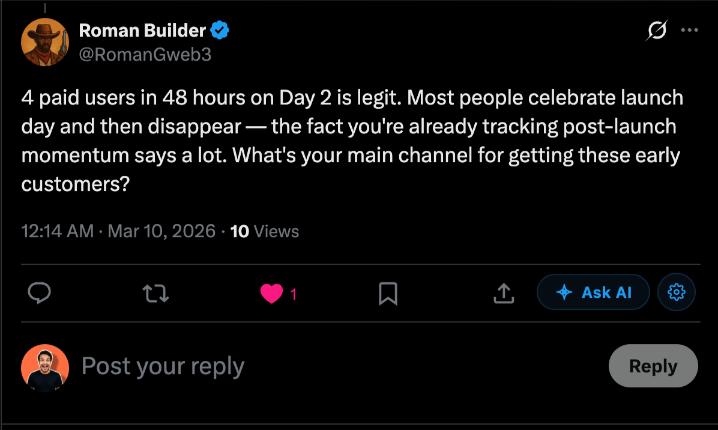
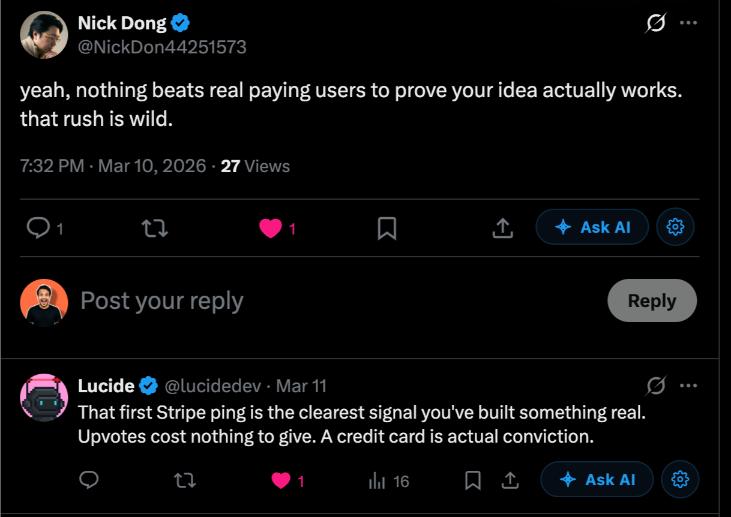
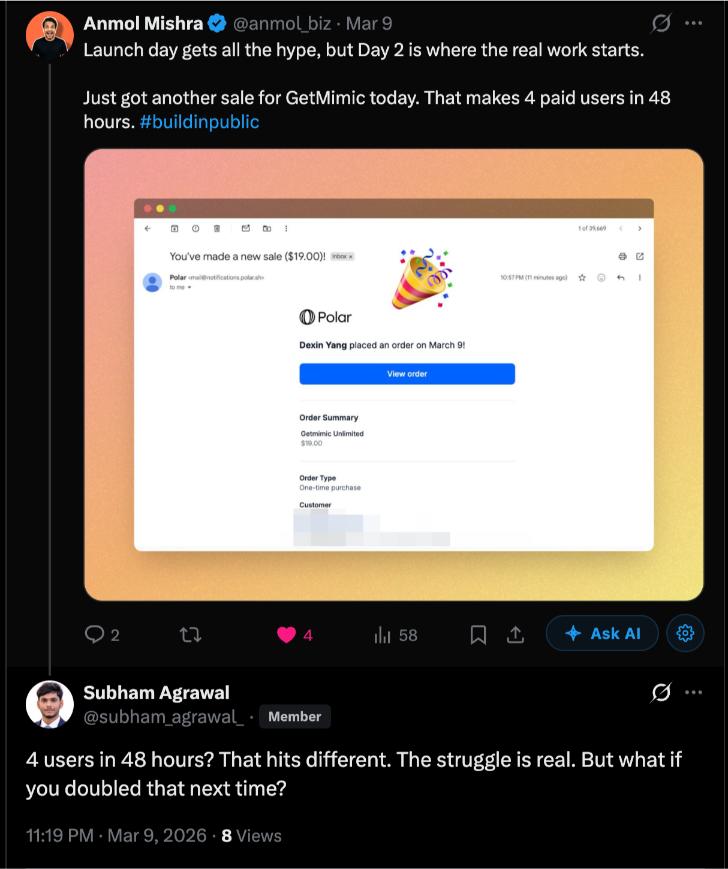
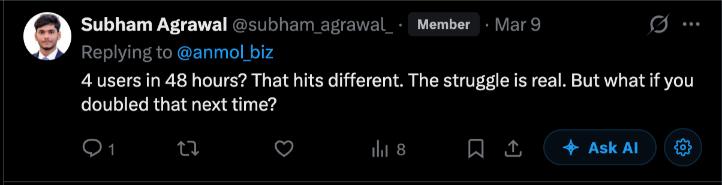
How to Create Chat Mockups in Bulk
How to Create Chat Mockups in Bulk without the usual fake-looking mistakes. This guide covers a simple workflow, realism tips, free options, and when a paid setup is worth it.
The quick answer
How to Create Chat Mockups in Bulk is mostly a detail game. If the layout, timing, and writing all agree with each other, the screenshot feels natural. If one of those pieces slips, the whole thing starts to wobble. Agency / power-user content.
The easiest way to get there is to use a dedicated chat mockup template, write the conversation before you start decorating it, and keep the final image tighter than your instincts tell you to. Most fake screenshots look fake because the creator keeps adding more instead of trimming back.
Step by step
- 1
Start with one template that already looks believable before you duplicate anything.
- 2
Create message variants in batches so the tone stays consistent across each campaign or client set.
- 3
Standardize naming, export size, and cropping rules early so the files stay manageable.
- 4
Review a sample batch on the actual devices or placements where the images will appear.
- 5
Only then scale the workflow. Bulk output is useful when the base quality already holds up.
What makes it believable
- Use the parts of the chat mockup interface people actually notice first: spacing, timestamps, theme, and profile details.
- Keep the dialogue ordinary. Real conversations are usually shorter and less polished than people expect.
- Check the screenshot on mobile if that is where it will be seen. Some layouts only look right at phone size.
Free tools are enough for most people
If you just need a good screenshot, do not overcomplicate the stack. One solid generator plus a simple editor is usually enough.
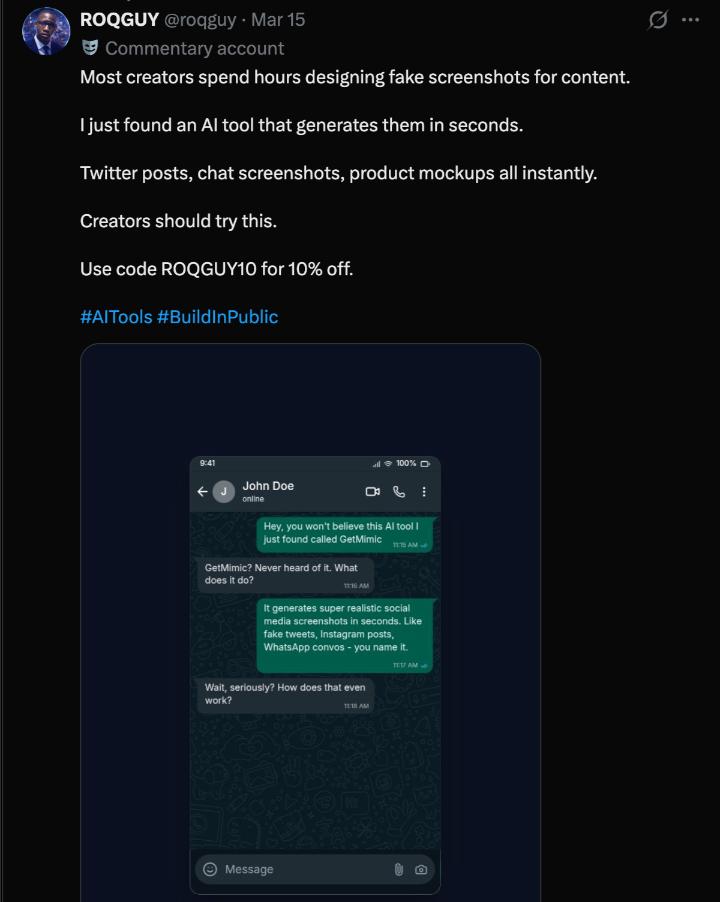
- GetMimic for the chat mockup mockup
- your phone or desktop screenshot tools for quick crops
- Canva Free or Google Slides if the image needs context after export
If you have a budget
Paid tools help most when the screenshot is part of a repeated workflow, not because the screenshot itself suddenly becomes impossible without them.
- Canva Pro for template reuse, resizing, and shared brand kits
- Figma if several people need to comment or approve variations
- Photoshop only when the mockup is one layer inside a heavier campaign asset
Common mistakes
- making every mockup look exactly the same
- trying to automate before the base template actually looks believable
- shipping bulk assets without checking text overflow at final sizes
FAQ
Can I create bulk chat mockup creation for free?
Yes. A dedicated mockup generator, a reference screenshot, and a basic image editor are usually enough for a strong result.
What makes a chat mockup screenshot look fake?
Usually it is inconsistency. The message tone, device styling, or timing details do not match the platform being imitated.
Do I need Canva or Photoshop for this?
Not for the core screenshot. Those tools are more useful after export if the image needs to live inside a campaign, deck, or polished creative asset.
Try the tool
If you want to turn this into an actual screenshot instead of just reading about it, jump into the generator and build one version fast. You can always polish the framing after export.
Open the chat mockup generatorRelated reads
How-To
How to Create a Fake WhatsApp Conversation (Complete Guide)
How to Create a Fake WhatsApp Conversation (Complete Guide) without the usual fake-looking mistakes. This guide covers a simple workflow, realism tips, free options, and when a paid setup is worth it.
How-To
How to Make a Realistic Fake iMessage Screenshot
How to Make a Realistic Fake iMessage Screenshot without the usual fake-looking mistakes. This guide covers a simple workflow, realism tips, free options, and when a paid setup is worth it.
How-To
How to Create a Fake Instagram DM Screenshot
How to Create a Fake Instagram DM Screenshot without the usual fake-looking mistakes. This guide covers a simple workflow, realism tips, free options, and when a paid setup is worth it.